







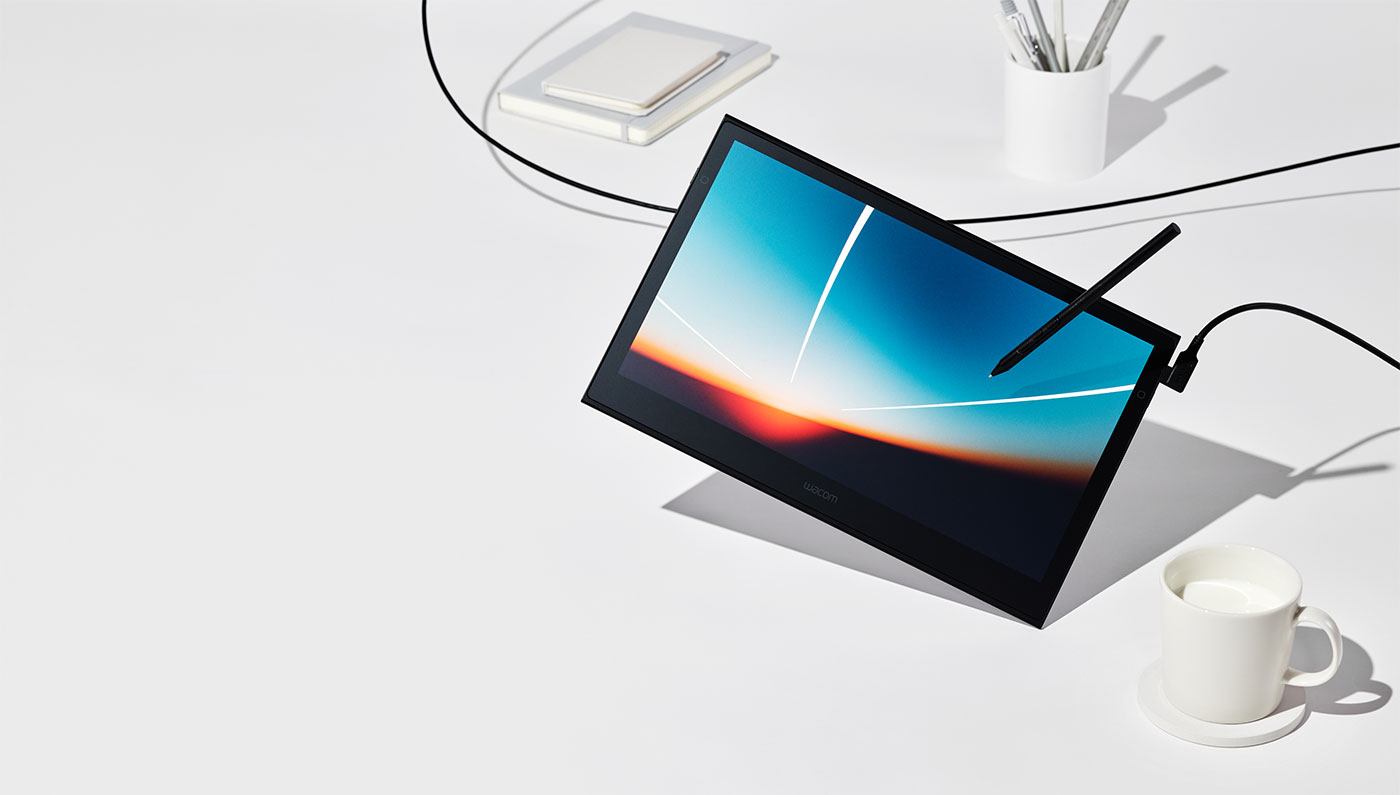









If you’re a digital artist, designer or content creator on the move, the Wacom Movink 13 offers a compelling mix of portability, professional-grade color fidelity and pen performance. In this article we’ll explore its features, what sets it apart, the trade-offs and how it stacks up against alternatives—so you can determine whether it’s the right tool for your workflow.
Key Features & Specs
Here are the standout specifications of the Movink 13:
- 13.3-inch OLED display, resolution 1920×1080 (Full HD).
- Active drawing area approx. 11.6″ × 6.5″ (i.e., around 294 × 165 mm).
- OLED panel: 10-bit colour depth, 100% DCI-P3, 95% Adobe RGB coverage.
- Ultra-thin and light: around 420 g weight, as thin as ~4 mm at its slimmest edge (some sources quote 6.5mm at thickest).
- Pen: Includes the Wacom Pro Pen 3 with 8,192 levels of pressure sensitivity, 60° tilt support.
- Connectivity: Dual USB-C ports (video + power + data) enabling single-cable connection (so long as your host supports USB-C Alt-Mode).
- Multi-touch support (10-point touch) plus customizable on-screen shortcuts.
What’s Exceptionally Good
Portability & build
The Movink 13 stands out for how thin and light it is. According to reviewers it’s “the thinnest and lightest pen display Wacom has made”. If you carry your creative kit between home, studio, client sites or travel, this makes a big difference.
Display & colour fidelity
The OLED panel offers deep blacks, high contrast ratio (quoted 100,000:1) and excellent colour gamut—100% DCI-P3 and 95% Adobe RGB. This means it’s well-suited for colour-critical work (photo editing, retouching, illustration) where accuracy matters.
Pen experience
Wacom’s pedigree in pen-displays remains solid, and this model benefits from that: 8,192 pressure levels, tilt support, responsive pen behaviour and minimal lag. One reviewer noted “very responsive” and “no hint of the lag that plagued older displays”.
Workflow integration
The dual USB-C ports enable left- or right-handed setups, and allow for power + signal over one cable (depending on host). The on-screen gesture/touch support and customizable shortcut buttons replace what might be many physical buttons.
What to Keep in Mind (Potential Trade-offs)
- Resolution: At Full HD (1920×1080) on a 13.3-inch screen some users may prefer higher resolution (e.g., 4K) for ultra-fine detail work or very close-up drawing. Many premium displays go higher.
- Stand & accessories: By default it may not ship with a fully adjustable stand or protective sleeve, which some reviewers mention as a missing convenience for a mobile setup.
- Host device compatibility: Because it relies on USB-C with video Alt-Mode for optimal one-cable connection, older computers without compatible ports may require adapters or extra cables. One reviewer noted: “My PC did not support display over USB-C in Alt Mode!”.
- Price: It’s relatively premium priced compared to budget pen-displays, but the build and features justify much of that.
- Introduction: Why portability matters for digital artists
- Key specs at a glance
- Stand-out advantages of the Movink 13
- Things to consider before buying
- How it compares to alternatives
- Verdict: Who should buy the Movink 13?
Comparison with Alternatives
Here’s how the Movink 13 stacks up against some other models:
| Model | Size / Resolution | Strengths | Weaknesses |
|---|---|---|---|
| Wacom Movink 13 | 13.3″, 1920×1080 OLED | Ultra-portable, OLED colour fidelity, Wacom pen quality | Full HD (not higher res), premium price |
| Wacom One 13 Touch | 13.3″, 1920×1080 LCD | More affordable, basic Wacom screen | Heavier/thicker than Movink; LCD not OLED; smaller colour gamut |
| Wacom Cintiq 13HD | 13.3″, 1920×1080 | Established model, physical shortcut buttons, large accessory ecosystem | Bulkier, not OLED, older tech |
| (Optionally mention from other brands) | – | – | – |
Key take-aways from comparison:
- If portability + OLED colour accuracy are top priorities → Movink 13 is a strong choice.
- If budget is tighter and you’re okay with LCD and less premium build → Wacom One 13 Touch gives core Wacom experience for less.
- If you already have a stable desktop setup and want more physical controls + accessory options → a model like Cintiq might still suit.
- If you want higher resolution than Full HD, you might explore larger / higher-res models (though with trade-off on size/portability). For example reviewers pointed this out: “since it’s a smaller screen I’d likely never use that resolution outside of Photoshop anyway.”
Verdict: Should You Buy It?
If your priorities include professional-grade colour accuracy, true pen experience, ultra portability, and you don’t mind the premium price for that quality — then yes, the Movink 13 is a very compelling tool. As one reviewer put it:
“The Wacom Movink looks good and works great… The OLED display is bright, vibrant and has excellent contrast.”


